Integrating Postman Pro with Microsoft Flow

A few weeks ago, we showed you how to turn your Postman collection into a Microsoft integration using Microsoft Flow. Well now, you can connect your Postman Pro account with Microsoft Flow using our built-in integration.
Microsoft Flow is a cloud-based service which allows you to automate workflows between your favourite apps and services to get notifications, synchronize files, collect data, and more. In addition to configuring your own workflows, Microsoft Flow has over 140 services listed with predefined flows that you can start using right away.
There are currently 4 ways to connect Postman Pro with Microsoft Flow.
Collection Activity Feed
The Collection Activity Feed is a way to get updates about a particular collection, allowing you to keep track of all the changes that are made to your favourite collections.
Team Activity Feed
Similar to the Collection Activity Feed, the one for the Team is a real-time stream of everything happening in your team, which helps you keep track of changes to your APIs in the team environment.
With the Team and Collection Activity Feeds, you can stay on top of all the changes to your APIs. Integrating with Flow gives you the freedom to connect email services like Outlook, Gmail, or even a custom SMTP service, or you can use Twilio to get the feed as a text message.
Back Up Postman Collections
Collections in Postman store your requests and are synced across all instances under your Postman account. With this integration, you can go one step further and connect your favourite services with Postman. Microsoft Flow gives you the flexibility to connect your collection with a cloud-based storage solution like Box, or connect to your custom DB2 instance and store your collections there.
Monitor Run Results
Postman monitors allow you to run your collections on a schedule without any manual support. Instead of creating a cron job to continuously test your APIs, Postman monitors will automate these runs. Integrate your monitor run results with a Business Intelligence tool like Power BI, or receive mobile notifications on your phone through the Microsoft Flow mobile app.
Enough said. Now let’s see how you can set up an integration.
The first step to configure the Flow integration is to obtain a custom webhook URL from Microsoft Flow where the configured data will be sent.
Head over to Microsoft Flow, and go to My Flows. Select Create from Blank in the top-right corner.
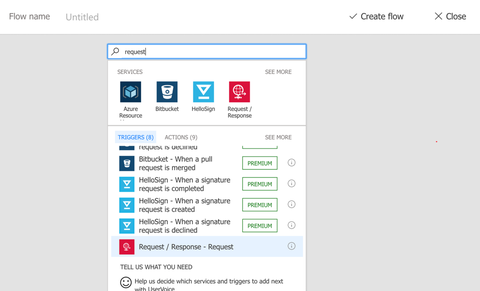
Then select the trigger for this flow. In our case, we will search for and select Request/Response - Request from the Triggers list.
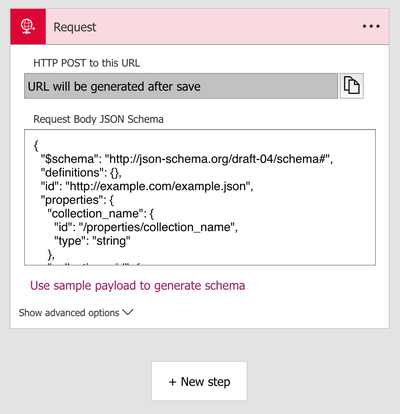
You will have to specify a JSON schema here which will be sent to the webhook. For the monitor run results integration, the schema is available here.
Copy and paste the JSON schema.
https://gist.github.com/ankitjaggi/e1677fd463df2d2142f138a0d44d630d
Once that is done, click on New Step → Add an Action and configure your specific service.
For this demo, I’ll show you how to connect your Postman monitor to the Microsoft Flow mobile app so that on every monitor run, you will receive a notification on your phone from the Microsoft Flow mobile app.
Select Notifications from the list of services, and choose the Send me a mobile notification action.

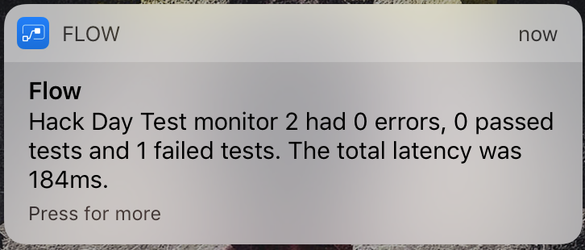
You can enter custom text that you want to be displayed on the notification and also use the content that will be sent to the webhook URL.

Enter a name for the flow you created. Click on Create Flow in the top-right corner. Once your flow has been created, you will get the webhook URL generated by Flow. To obtain it, click on the Request trigger and you will find your generated webhook URL.
Once this webhook has been generated, head over to the Postman Integrations page and select the Microsoft Flow Integration. Select the Monitor Run Results integration.
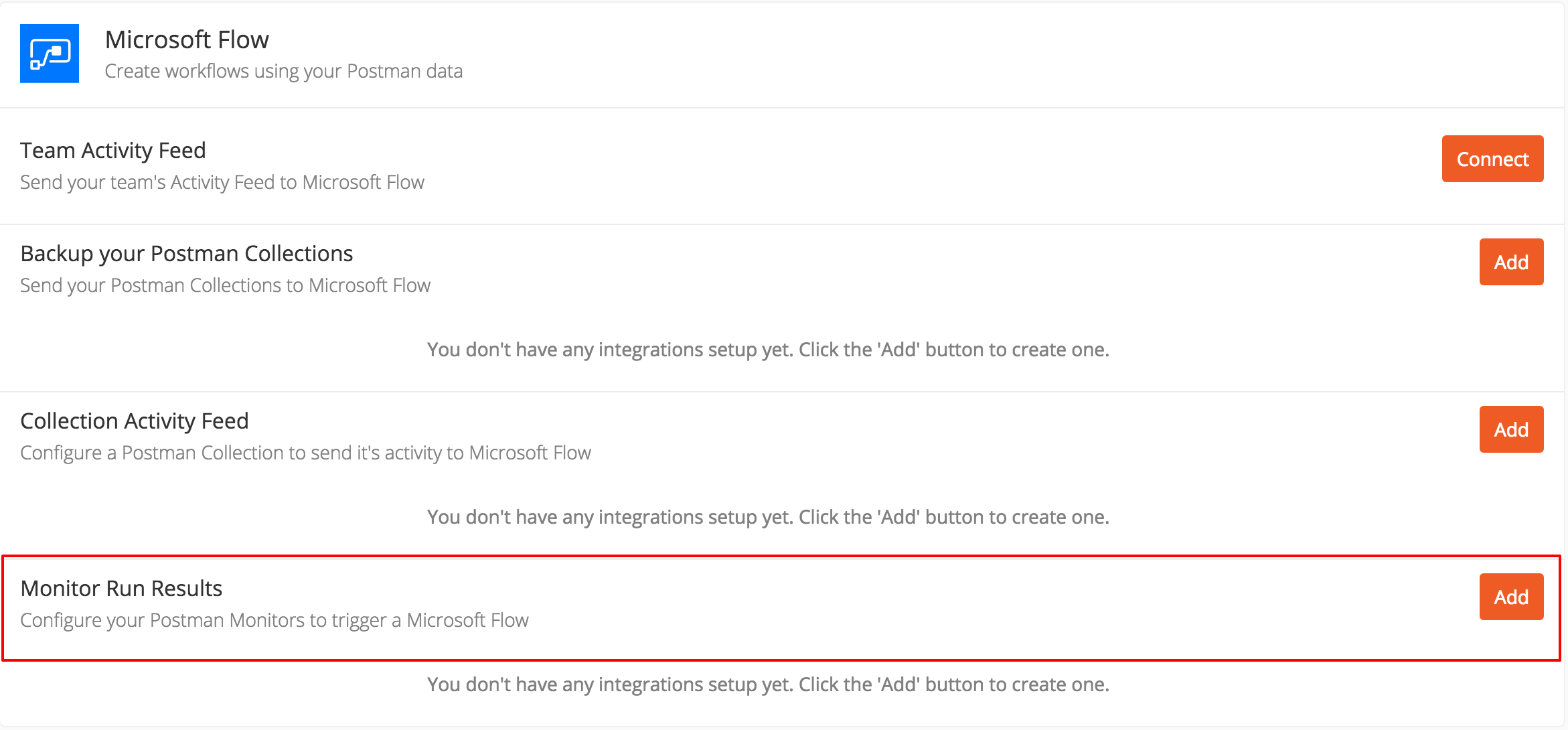
Enter the webhook URL you generated from Microsoft Flow and select the monitor to connect. Under the Advanced Options, you can also configure how frequently you want to be notified about the monitor run.
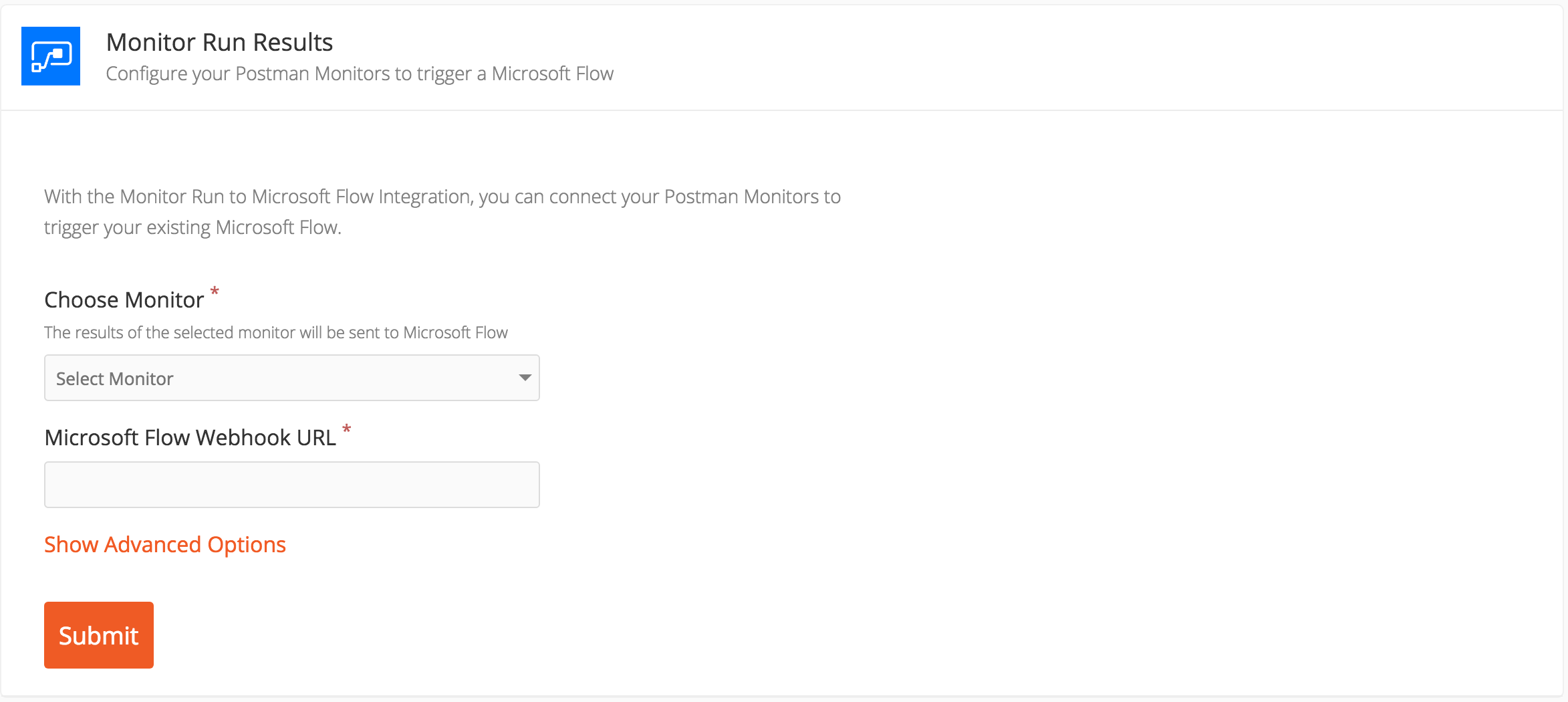
And you’re done! Now, whenever a monitor runs, you will get a notification like this on your Flow mobile app.
Following these same steps, you can set up the other Microsoft Flow integrations as well. The JSON schema for the other integrations are displayed below.
Team and Collection Activity Feed schema:
https://gist.github.com/ankitjaggi/b4d90f72c9fdd41dd2e4e0421eca249f
https://gist.github.com/ankitjaggi/7ebe8208fe520739e3ab931ffc6c54a7