Catch, route, and replay inbound webhooks without leaving Postman

Most of API development is about the calls you make. But a lot of the interesting stuff happens in the other direction, something out in the world finishes a job and calls you. A payment clears. A build goes red. Someone opens an issue. Those are webhooks, and they’re one of the more awkward things to build against.
The problem is structural. A webhook provider needs a public URL it can POST to. Your handler is running on localhost. So you reach for a tunneling tool, paste the generated URL into the provider’s settings, fire a test event, and then go squinting through logs to find out whether anything arrived and what shape it was in. When it breaks, you can’t send it again, you have to coax the provider into generating another real event. There’s no history, no replay, and no shared record your teammates can look at.
Webhook listeners in Postman fix that. A listener gives you a stable public URL to hand to any provider, and a workspace-shared log of every event that comes in raw headers, raw body, timestamp, and the response that went back. From there you can do three things: inspect what’s actually arriving, route it wherever you’re working, and replay anything on demand. No tunnel, no deploy, no guessing.
Here’s the whole thing end to end, using GitHub as the provider.
The demo: auto-triaging new issues
The goal is small and realistic. When someone opens an issue on my repo, I want to automatically slap a needs-triage label on it so my team can sort the backlog. GitHub fires a webhook on issue activity, so this is a perfect inbound-webhook problem and a perfect thing to develop entirely inside Postman before any of it is deployed.
Create a listener
In the left sidebar I clicked the add button and chose Webhook, from the Services section. The listener starts capturing the moment it exists, and it hands me a stable URL:
https://abc123.webhook.pstmn.io
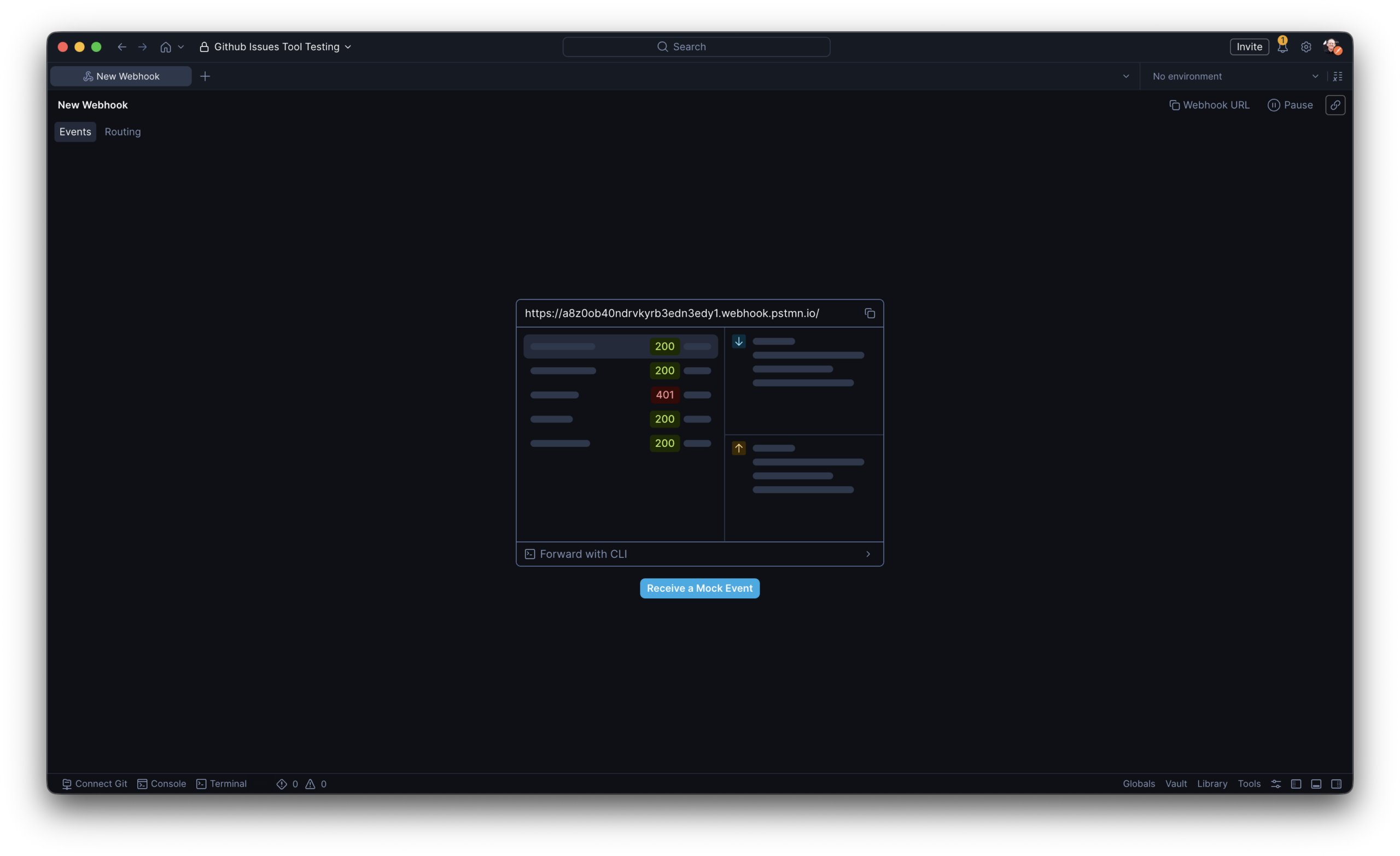
“Stable” is the word that matters. This URL survives across sessions and doesn’t change when I pause and restart the listener, so I register it with GitHub exactly once. Everything I want to change afterward, where events go, what I send back, I change from inside Postman, never from the provider’s settings.
Point GitHub at it
In the repo, under Settings > Webhooks > Add webhook, I pasted the listener URL as the Payload URL, set the content type to application/json, chose Let me select individual events, and selected Issues. GitHub immediately sends a ping to confirm the endpoint is alive, and it shows up in my listener right away.
Inspect what’s arriving
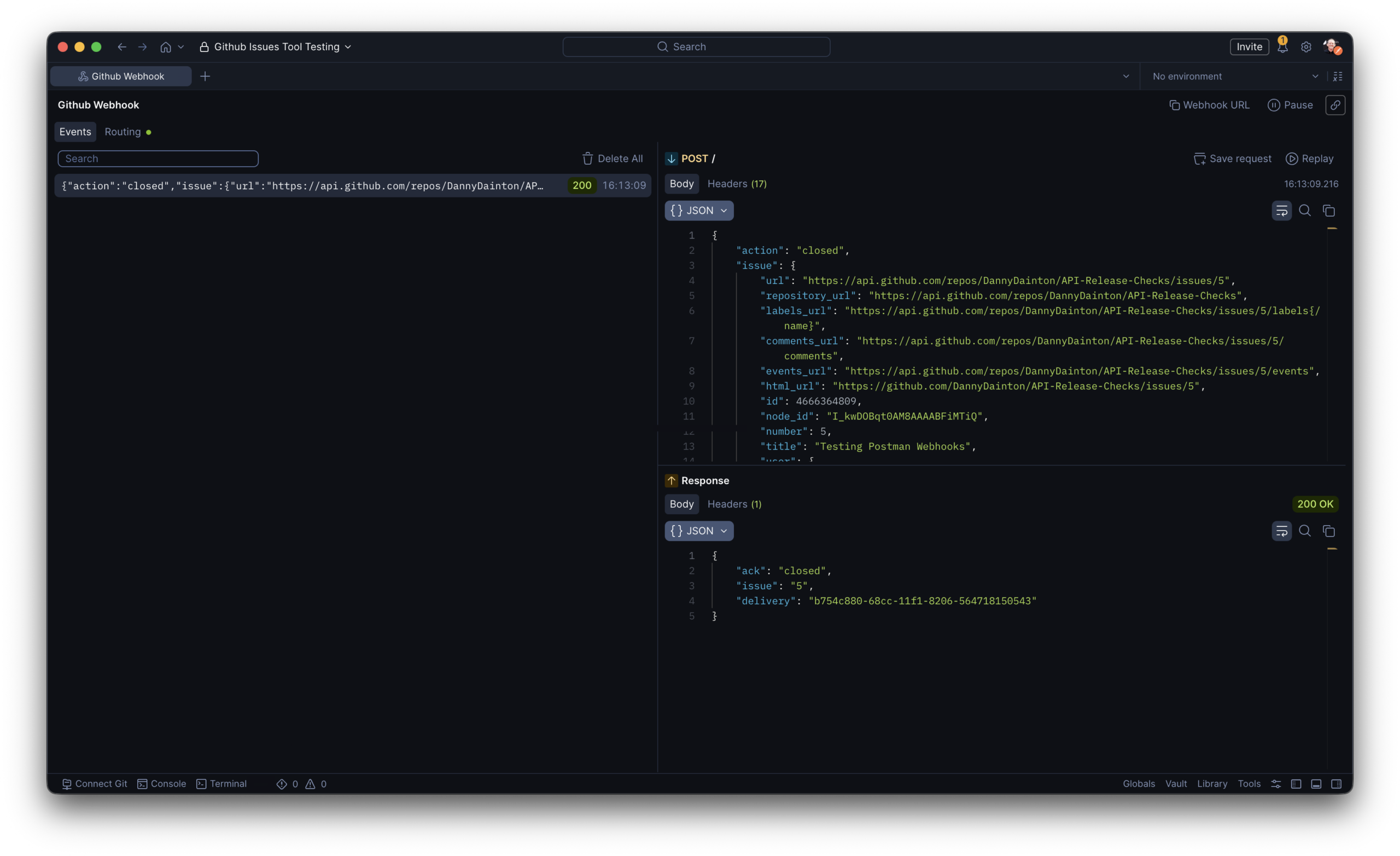
Now I open an issue in the repo and watch the event land in the Events tab. Postman shows me the raw body exactly as GitHub sent it, it never reformats the payload, which matters the moment you start verifying signatures along with the headers. The ones I care about are right there:
X-GitHub-Event: issues X-GitHub-Delivery: 8f1e2c4a-...And in the body, the fields I’ll route on:
{
  "action": "opened",
  "issue": { "number": 42, "title": "Login button misaligned on mobile" },
  "repository": { "full_name": "acme/web-app" }
}
Close the issue and a second event arrives with “action”: “closed”. The event log is shared with the whole workspace, so when a teammate says “the close event looks off,” we’re both staring at the same captured payload instead of trading screenshots.
That’s inspection. Useful, but passive. Routing is where the listener starts doing the work.
Routing events
The Routing tab decides what happens to each incoming event. There are two modes Forward and Respond, you pick one or the other, not both at the same time. I used each for a different stage of the build.
Respond: a quick ack to prove the wiring
Before I write a single line of server code, I want to confirm GitHub is reaching me and that I’m reading the payload correctly. So I set the listener to Respond, status 200, and built a body using Postman’s template syntax to echo values straight out of the incoming request:
{
  "ack": "{{$body 'action'}}",
  "issue": "{{$body 'issue.number'}}",
  "delivery": "{{$headers 'x-github-delivery'}}"
}
The syntax follows object-path conventions inside double curly braces, so {{$body 'issue.number'}} reaches right into the nested payload, {{$headers 'x-github-delivery'}} pulls a header, and there’s a {{$query '...'}} for query parameters too. Postman substitutes the real values when it sends the response. Open an issue, and GitHub gets back a 200 that names the action and issue number it sent, instant confirmation, with no server running anywhere.
Forward: do the real work on localhost
Once I’m confident in the payloads, I want real GitHub events hitting the code on my machine. So I switch the listener to Forward and give it my local route:
http://localhost:3005/github/issues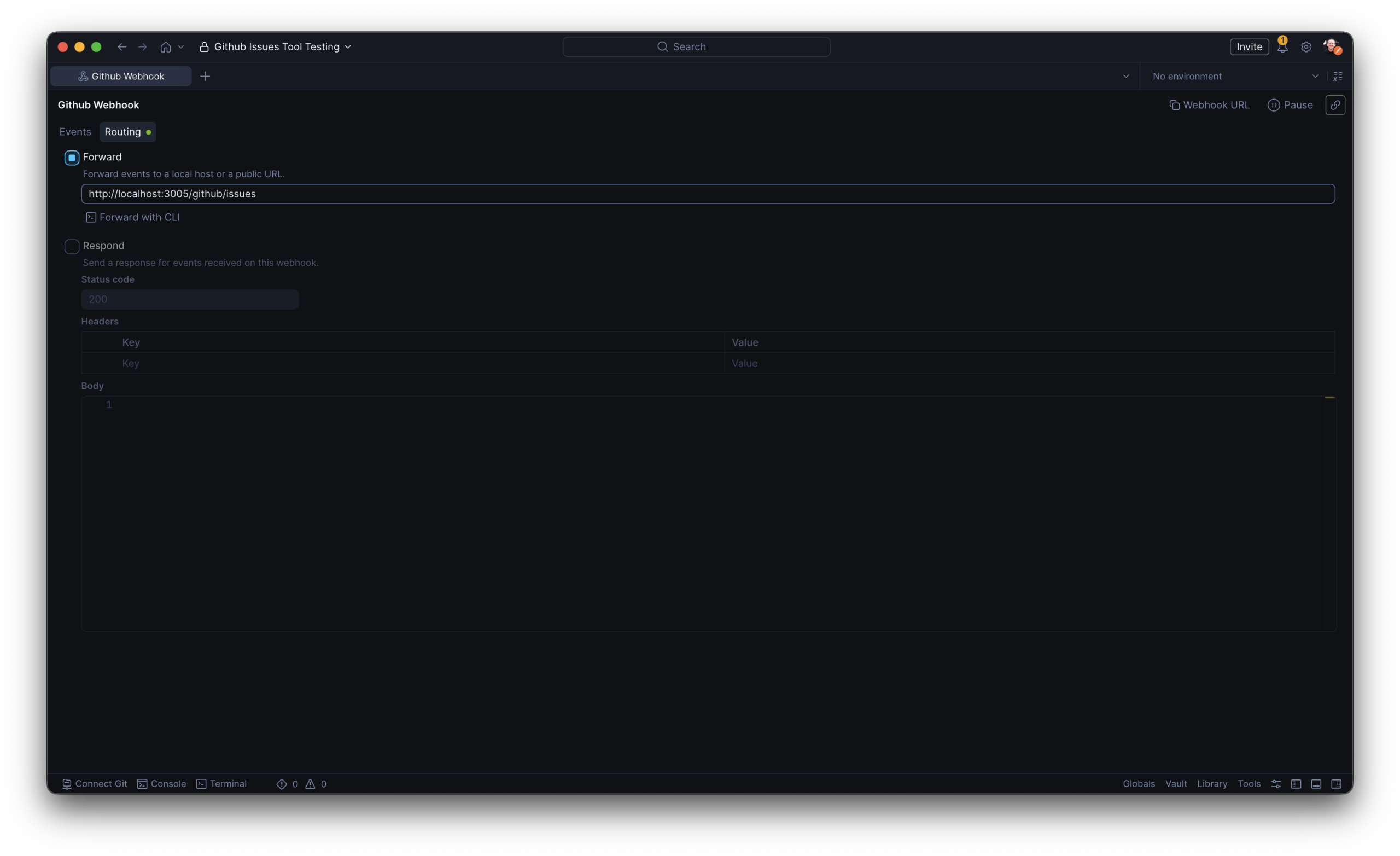
The flow is now: GitHub → my stable Postman URL → localhost:3005. No tunnel involved. My handler reacts to the opened action by calling the GitHub issues API to add the label:
import 'dotenv/config';
import express from 'express';

const PORT = 3005;
const GITHUB_TOKEN = process.env.GITHUB_TOKEN;

if (!GITHUB_TOKEN) {
  console.error('Set GITHUB_TOKEN before running.');
  process.exit(1);
}

const app = express();
app.use(express.json());

// POST /github/issues — receives events forwarded by the Postman listener
app.post('/github/issues', async (req, res) => {
    const { action, issue, repository } = req.body || {};

    if (!action || !issue || !repository) {
      return res.status(400).json({ error: 'Invalid webhook payload' });
    }

    if (action === 'opened') {
      const [owner, repo] = repository.full_name.split('/');
      await fetch(
        `https://api.github.com/repos/${owner}/${repo}/issues/${issue.number}/labels`,
        {
          method: 'POST',
          headers: {
            Authorization: `Bearer ${process.env.GITHUB_TOKEN}`,
            Accept: 'application/vnd.github+json',
          },
          body: JSON.stringify({ labels: ['needs-triage'] }),
        }
      );
    }

    res.sendStatus(200);
  });

  app.listen(PORT, () => {
    console.log(`Issue acknowledgement bot on http://localhost:${PORT}/`);
  });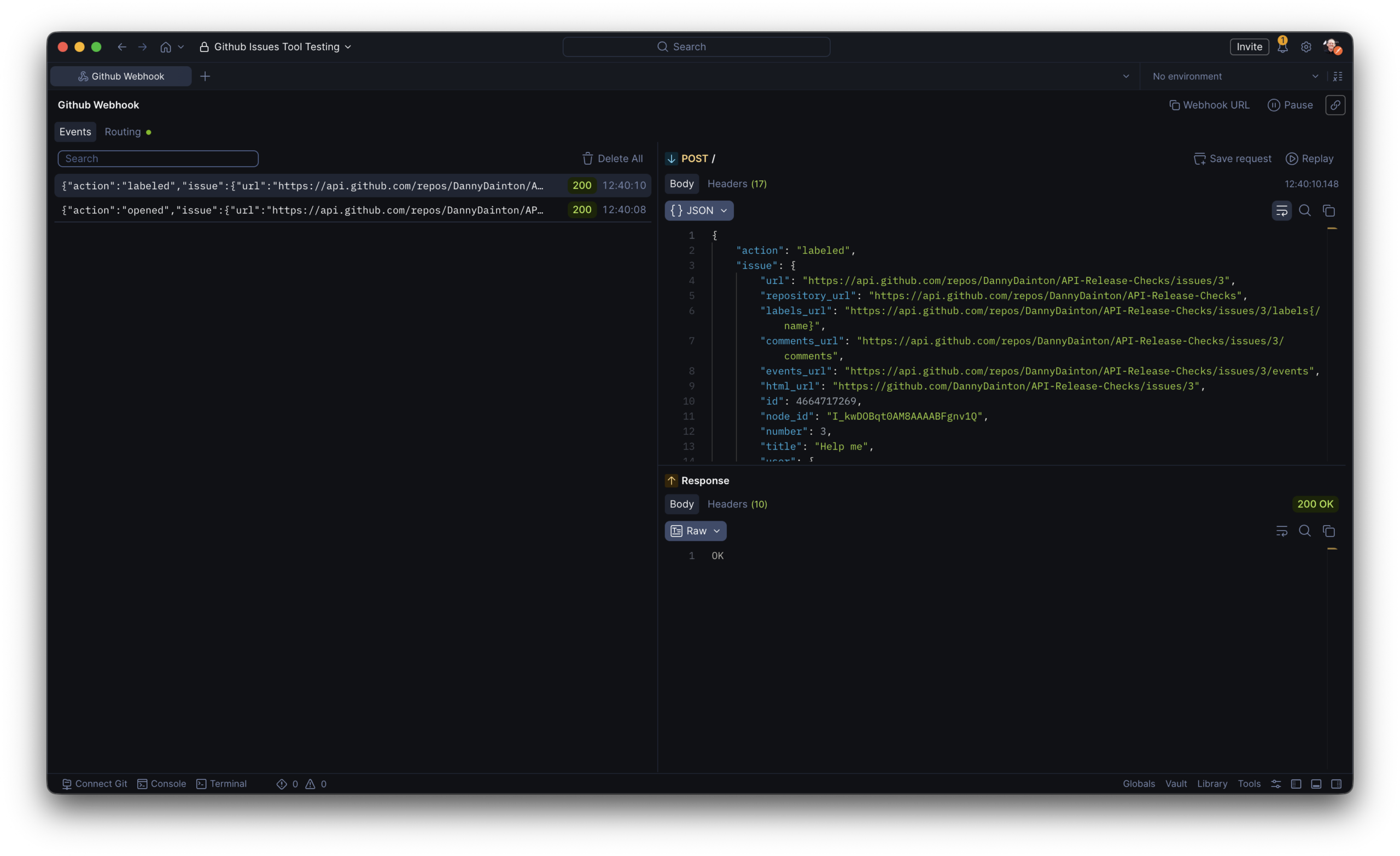
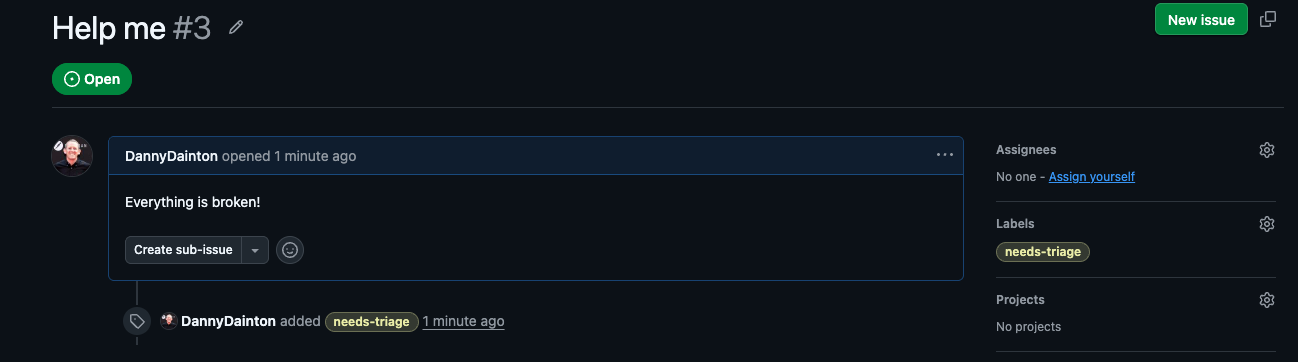
I open a fresh issue, the event flows through the listener into my handler, and the needs-triage label appears on the issue a second later.
When I’m ready to move this off my laptop, I don’t touch GitHub’s settings, I change the forward target to something like https://triage.acme.dev/github/issues. The listener URL stays exactly where it was.
Replay instead of “open another issue”
Partway through I hit a bug: my handler assumed every event had an issue object, and the ping event doesn’t. Normally this is the point where I’d go open yet another throwaway issue to generate a fresh event. Instead I opened the offending event in the Events tab and hit Replay.
Replay resends the exact raw headers and body as they originally arrived, through whatever routing rule the listener currently has set. Mine was still forwarding to localhost, so the captured event went straight back into my patched handler. I fixed the guard, replayed, watched it pass then replayed the same “issue opened” event a second time to make sure I wasn’t stacking duplicate labels. A free idempotency check on a real payload I never had to ask GitHub to reproduce.
Why it’s worth it
Inbound webhooks used to mean a tunnel, a provider dashboard, and a lot of squinting. A webhook listener collapses that into one place: a stable URL you register once, a shared log of every event in its raw form, routing that points wherever you’re working that day, and replay for anything you want to run again. The GitHub example here is small on purpose, but the same listener works for payments, CI, chat platforms, anything that calls you instead of the other way around.
Webhook listeners are available on Postman Solo, Team, and Enterprise plans. If you’ve got a service on the receiving end of someone else’s events, spin one up and point a provider at it. The Routing tab is where it gets fun.





What do you think about this topic? Tell us in a comment below.