Postman Playwright Integration: Testing UI and API Together

Testing modern applications means validating both what users see in the browser AND what’s happening behind the scenes with your APIs. But here’s the problem I’ve run into countless times: your UI tests might pass while your API contracts are silently breaking, or your API tests work perfectly but the frontend is calling the wrong endpoints entirely.
In this post, I’ll walk through Postman’s new Application Inventory feature that bridges this gap by integrating Playwright UI tests with Postman API contract validation. You’ll see how to analyze actual UI behavior based on real API calls, catching issues that traditional testing approaches miss.
The Sample App: User Permissions Management
I’ll demonstrate this workflow using a basic user permissions application that handles CRUD operations for user access control. This app manages four core permission types:
- Read – View user data and permissions
- Write – Create new users and assign permissions
- Update – Modify existing user permissions
- Delete – Remove users and revoke permissions
The frontend uses a typical React/JavaScript stack that makes REST API calls to manage these permissions.
Prerequisite:
Make sure your application is already linked to a workspace.
Step 1: Generate Playwright Tests with Agent Mode
Here’s where Postman’s Agent Mode becomes powerful. Instead of writing Playwright tests from scratch, Agent Mode can generate them directly from your frontend code.
With my user permissions collection already set up in Postman, I opened Agent Mode and entered the prompt:
Generate Playwright UI tests based off my frontend code.What Agent Mode generated for me:
import { test as baseTest, expect } from '@playwright/test';
import { attachNetworkCapture } from 'postman-playwright';

const test = attachNetworkCapture(baseTest);

/**
 * UI tests for managing a user's permissions end-to-end.
 *
 * Validates that an admin can:
 *   - Select a user and view their currently granted permissions.
 *   - Toggle permissions on and off.
 *   - Save the new permission set and see a success notification.
 */

test.describe('User Permissions management UI', () => {
  test.beforeEach(async ({ page }) => {
    await page.goto('/');

    const userCards = page.locator('.user-card');
    await expect(userCards.first()).toBeVisible();
    await userCards.first().click();

    await expect(page.locator('.permission-item').first()).toBeVisible();
  });

  test('reflects the selected user in the permissions header', async ({ page }) => {
    const userName = (await page
      .locator('.user-card.selected .user-name')
      .first()
      .textContent())?.trim();
    expect(userName?.length ?? 0).toBeGreaterThan(0);

    await expect(
      page.getByRole('heading', { name: new RegExp(`Permissions for ${userName}`, 'i') })
    ).toBeVisible();
  });

  test('toggling a permission and saving shows a success notification', async ({ page }) => {
    const firstToggle = page.locator('.toggle-switch').first();
    await firstToggle.click();

    const saveBtn = page.getByRole('button', { name: /Save Permissions/i });
    await expect(saveBtn).toBeEnabled();
    await saveBtn.click();

    // Wait for the save button to return to normal state (indicating save completed)
    await expect(saveBtn).toContainText('Save Permissions', { timeout: 10000 });
    await expect(saveBtn).not.toBeDisabled();
  });

The key insight here: Agent Mode understands my code and creates UI tests that exercise the same user workflows my APIs support. This alignment between UI tests and API contracts is what makes the next steps so powerful.
Step 2: Initialize with postman app init
With the Playwright tests generated, I ran the Postman CLI’s initialization command:
postman app init
This command walked me through several setup questions:
Collection Selection:
? Which collections should we validate against?
❯ ✓ User Management API
Environment Selection:
? Select the default environment?
  Local Development
❯ User Permissions API - Local 1
  Production
Test Script Configuration:
? What command runs your UI tests?
❯ npx playwright test
  Custom command...
The CLI detected my package.json and automatically suggested npx playwright test.
Output Configuration:
✓ Application Inventory initialized successfully!
✓ Created postman.config.cjs
✓ Added postman-playwright plugin to package.json
✓ Environment variables configured
The initialization created a postman.config.cjs file that includes all of that info:
 // The command to run before analysis (e.g. your test suite).
    command: 'npx playwright test',

    // Targets define which collections and environment to use for analysis.
    targets: {
        default: {
            environment: 'User Permissions API - Local 1',
            collections: ['User Permissions API-1'],
        }
Step 3: Run Tests with postman application test
Here’s where the magic happens. Instead of running Playwright tests in isolation, the Postman CLI orchestrates both UI testing AND API validation:
CI=true postman application test
The CI=true flag tells Postman to run in continuous integration mode, which not only show the result in terminal, but also stores the result in Application Inventory.
What I saw in the terminal:
[email protected]@PM-L2Y6LJPHFX user-permissions % CI=true postman application test
[app:test] Loading local collection: /Users/[email protected]/Postman/user-permissions/postman/collections/User Permissions API-1
[app:test] Loading local environment: /Users/[email protected]/Postman/user-permissions/postman/environments/User Permissions API - Local 1.environment.yaml

[app:test] Starting command (primary task): npx playwright test

Running 4 tests using 1 worker

  ✓  1 …s:28:3 › User Permissions management UI › reflects the selected user in the permissions header (932ms)
  ✓  2 … User Permissions management UI › toggling a permission and saving shows a success notification (1.6s)
  ✓  3 ….spec.ts:87:3 › User Permissions management UI › Save button shows a loading state while saving (2.2s)

  4 passed (10.4s)

[app:test] Command finished. Running test tasks...


→ Running Postman tests against 43 captured requests (20 deduplicated)


  ┌ chrome › user-permissions.spec.ts › User Permissions management UI › reflects the selected user in the permissions header
  │ UI Test: passed  |  duration: 773ms
  └ 5 matched ★ 0 not matched ★ 5 total

  ┌ chrome › user-permissions.spec.ts › User Permissions management UI › toggling a permission and saving shows a success notification
  │ UI Test: passed  |  duration: 1496ms
  └ 6 matched ★ 0 not matched ★ 6 total

  ┌ chrome › user-permissions.spec.ts › User Permissions management UI › Save button shows a loading state while saving
  │ UI Test: passed  |  duration: 2091ms
  └ 6 matched ★ 0 not matched ★ 6 total

┌────────────────────┬────────────────────────────────────┐
│        collections │  1                                 │
├────────────────────┼────────────────────────────────────┤
│              tests │  4                                 │
├────────────────────┼────────────────────────────────────┤
│  requests captured │  43                                │
├────────────────────┼────────────────────────────────────┤
│   requests matched │  23 matched  ★  0 not matched      │
├────────────────────┼────────────────────────────────────┤
│         assertions │  23 total  ★  0 passed  ★ 0 failed │
└────────────────────┴────────────────────────────────────┘

[app:test:analytics] remote ingest finished
✓ Run results were stored in Postman.
The browser window showed my Playwright tests executing in real-time, while Postman simultaneously captured and validated every API call made during those UI interactions.
Step 4: Application Inventory – The Holistic View
The real power comes from Application Inventory’s unified dashboard. After the tests completed, I could see the results of my CI/CD run.
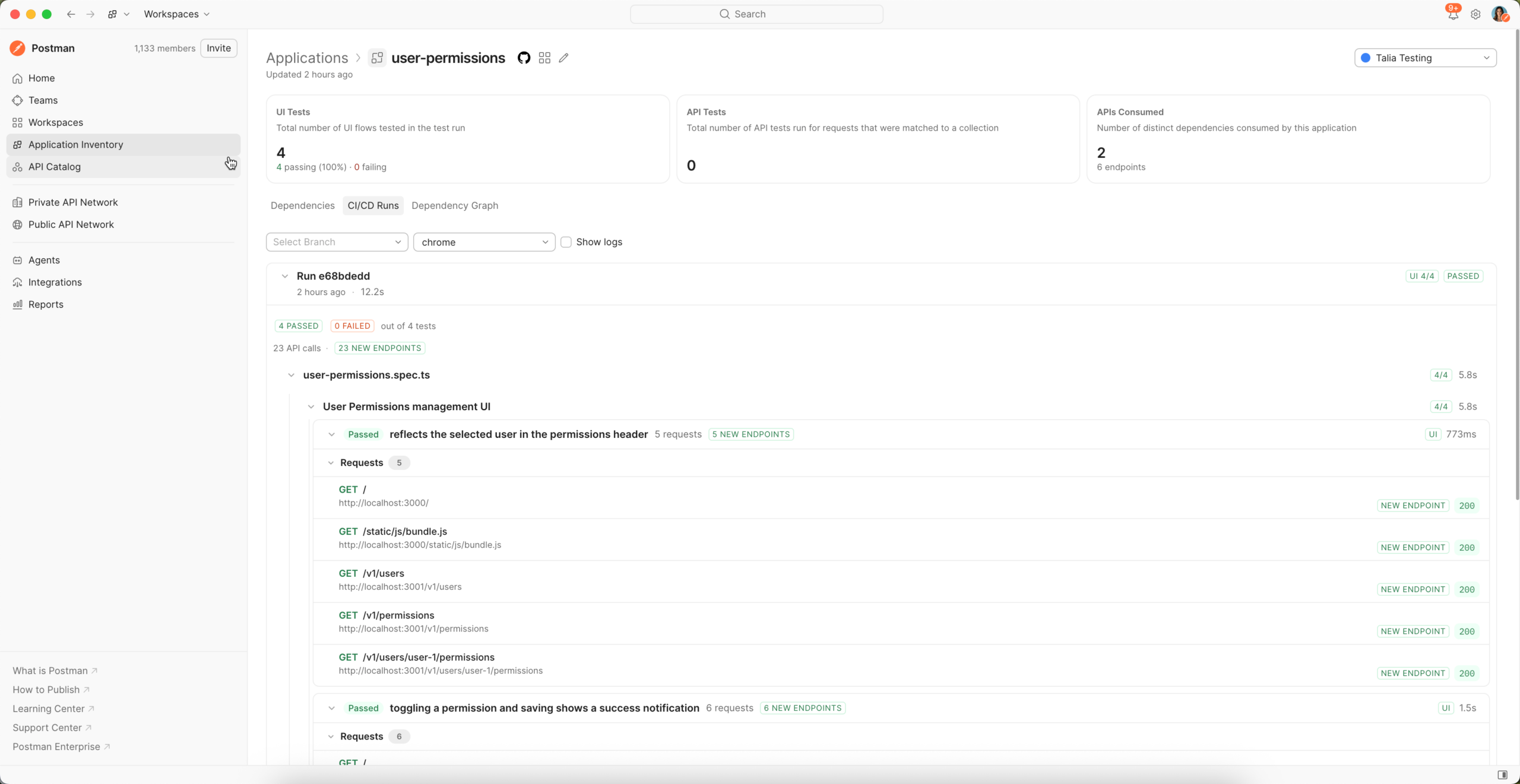
CI/CD Test Results
- Test execution: All Playwright tests passed
- API Calls: 23 API calls
- Browser coverage: Tests ran in Chrome (as configured)
Every time code changes trigger the pipeline, I get:
- Automated UI testing via Playwright
- API contract validation via Postman collections
- Coverage reports showing which endpoints are exercised
- Drift detection when UI behavior diverges from documented APIs
Why This Approach Works
I’ve found this integrated testing approach catches three categories of issues that traditional testing misses:
Contract Drift
Your API documentation says one thing, but your UI does another. Application Inventory catches when frontend code calls undocumented endpoints or sends unexpected request formats.
Silent Backend Errors
Your UI tests might pass even when APIs return error responses, as long as the DOM elements exist. By validating API responses during UI tests, you catch these silent failures.
Missing API Coverage
You might have comprehensive API tests but miss edge cases that only occur during specific UI workflows. This approach ensures your API tests cover real usage patterns.
The Contract Testing Revolution
This integration between Postman and Playwright represents a significant evolution in contract testing. Traditional contract testing validates that APIs meet their documented specifications, but it typically happens in isolation from real user workflows.
We are still running your contracts, but testing them happens at the same time as the your Playwright tests. This combination of both API tests (Postman collection assertions) and UI tests (Playwright tests) now validate actual usage patterns rather than theoretical API calls.
Next Steps
This integration between UI testing and API validation represents a shift toward more realistic testing approaches. Instead of testing components in isolation, you’re validating the complete user journey—from browser interactions to backend responses.
Try this workflow with your own application:
- Set up a simple Playwright test for one key user flow
- Document the APIs that flow uses in a Postman collection
- Run
postman app initto connect them - Execute
postman application testand examine the results
You’ll likely discover API calls you didn’t know your frontend was making, or find gaps between your documented APIs and actual usage patterns.
Resources
- Application Inventory documentation – Complete CLI reference and setup guide
- Agent Mode overview – Learn how AI generates tests from your collections
- Postman CLI installation – Get started with command-line testing
- Playwright integration guide – Official Playwright API testing documentation
- Sample user permissions app – Complete working example to clone and experiment with




What do you think about this topic? Tell us in a comment below.